
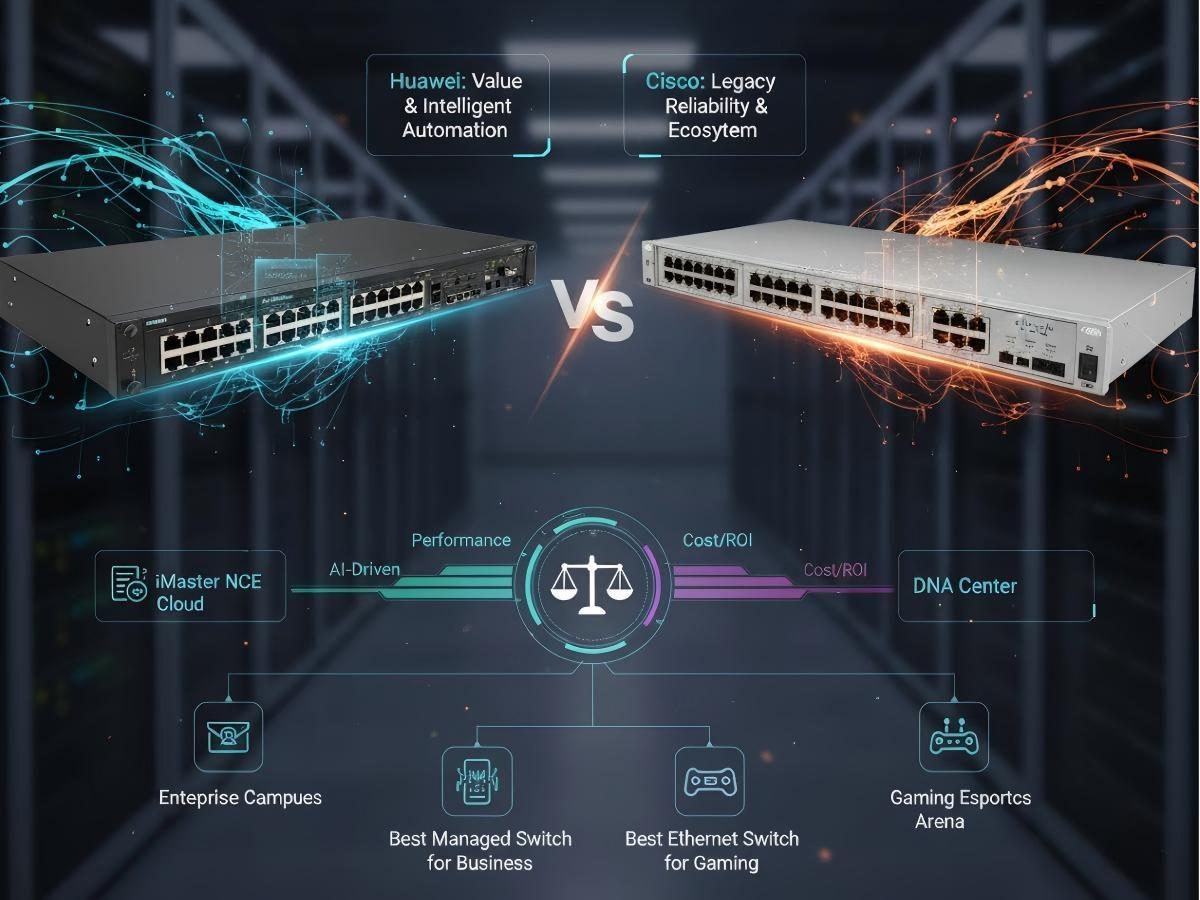
Cisco vs Huawei Switch Commands: Complete Configuration and Troubleshooting Guide
Introduction
In today's enterprise networking environment, Cisco and Huawei are two widely used networking technology providers. Organizations across Pakistan and worldwide rely on their networking equipment to manage business connectivity, data centers, industrial networks, campus infrastructure, and network security.
However, network engineers familiar with Cisco IOS often face challenges when configuring Huawei switches because of differences in command syntax, configuration methods, and terminology.
Although the commands are different, the fundamental networking concepts remain largely the same.
This comprehensive guide provides a practical comparison of Cisco IOS and Huawei VRP commands, including configuration examples, command explanations, troubleshooting techniques, and real-world networking solutions.
Whether you are a network engineer, IT manager, system administrator, or an organization planning to migrate from Cisco to Huawei, this guide will help you understand and manage multi-vendor network infrastructure more effectively.
1. Understanding Cisco IOS and Huawei VRP
Cisco uses Internetwork Operating System (IOS) and IOS XE across many enterprise networking devices, while Huawei uses Versatile Routing Platform (VRP).
Both operating systems provide command-line interfaces for configuring, managing, monitoring, and troubleshooting networking equipment.
| Function | Cisco IOS | Huawei VRP |
|---|---|---|
| Operating System | IOS / IOS XE | VRP |
| Configuration Mode | configure terminal | system-view |
| Display Information | show | display |
| Remove Configuration | no | undo |
| Device Name | hostname | sysname |
| Save Configuration | write memory | save |
| Restart Device | reload | reboot |
| Exit Current Mode | exit | quit |
| Return to Main Mode | end | return |
| VLAN Routing Interface | SVI | VLANIF |
| Link Aggregation | EtherChannel | Eth-Trunk |
Important: The examples in this guide are based on common Cisco IOS/IOS XE and Huawei VRP enterprise switches. Command availability may vary depending on hardware models, software versions, and supported features.
2. Understanding CLI Configuration Modes
Before configuring any network switch, engineers must understand the different command-line configuration modes.
Cisco Configuration Modes
User EXEC Mode:
Switch>
Enter privileged EXEC mode:
enable
Enter global configuration mode:
configure terminal
Enter interface configuration mode:
interface GigabitEthernet1/0/1
Huawei Configuration Modes
User View:
<Huawei>
Enter system configuration view:
system-view
Enter interface configuration view:
interface GigabitEthernet0/0/1
Command Explanation
| Command | Meaning |
|---|---|
| enable | Provides access to Cisco privileged administrative commands |
| configure terminal | Opens Cisco global configuration mode |
| system-view | Opens Huawei system configuration view |
| interface | Selects a physical or logical interface |
| exit / quit | Returns to the previous configuration level |
| end / return | Returns to the main operational mode |
Cisco generally requires an intermediate privileged EXEC mode, while Huawei uses its system view for configuration, subject to the user's assigned privileges.
3. Basic Switch Management Commands
The following commands are commonly used for daily network administration, monitoring, and troubleshooting.
| Purpose | Cisco Command | Huawei Command |
|---|---|---|
| Display software version | show version | display version |
| Display active configuration | show running-config | display current-configuration |
| Display saved configuration | show startup-config | display saved-configuration |
| Display system clock | show clock | display clock |
| Display system logs | show logging | display logbuffer |
| Display CPU utilization | show processes cpu | display cpu-usage |
| Display memory utilization | show processes memory | display memory-usage |
| Display connected users | show users | display users |
| Save configuration | write memory | save |
| Restart device | reload | reboot |
| Test connectivity | ping | ping |
| Trace network path | traceroute | tracert |
| Display files | dir | dir |
Running Configuration vs Saved Configuration
The running configuration contains the settings currently operating on the switch.
The saved configuration contains the settings intended to be loaded when the device restarts.
If a network engineer changes the switch configuration without saving it, those changes may be lost following a power failure or device restart.
Cisco uses:
copy running-config startup-config
Huawei uses:
save
Saving a verified configuration is an important part of enterprise network maintenance.
4. Configuring Switch Hostname
A meaningful hostname helps network administrators identify switches installed across different buildings, departments, and network locations.
Cisco Configuration
enable
configure terminal
hostname CORE-SW-01
Huawei Configuration
system-view
sysname CORE-SW-01
Command Explanation
The Cisco hostname command and Huawei sysname command perform the same basic function: assigning a recognizable name to the networking device.
Recommended naming examples include:
- CORE-SW-01
- FINANCE-SW-01
- DATA-CENTER-SW-01
- ACCESS-SW-FLOOR-02
- CCTV-SW-01
A standardized naming convention simplifies network monitoring, documentation, and troubleshooting.
5. Physical Interface Configuration
Physical interface configuration determines how individual switch ports operate.
| Purpose | Cisco Command | Huawei Command |
|---|---|---|
| Select interface | interface GigabitEthernet1/0/1 | interface GigabitEthernet0/0/1 |
| Disable interface | shutdown | shutdown |
| Enable interface | no shutdown | undo shutdown |
| Add description | description Finance-PC | description Finance-PC |
| Configure speed | speed 100 | speed 100 |
| Configure duplex | duplex full | duplex full |
| Display interface status | show interfaces status | display interface brief |
| Display interface details | show interfaces GigabitEthernet1/0/1 | display interface GigabitEthernet0/0/1 |
Speed and duplex commands depend on the interface type, hardware capabilities, and negotiation settings.
Understanding Interface Numbering
An interface such as GigabitEthernet0/0/1 identifies a specific physical switch port.
The numbers generally represent hardware location, slot, subslot, stack member, or port identifiers, depending on the switch architecture.
Practical Application
Interface descriptions are particularly useful in large enterprise networks where hundreds of network ports may connect to different departments, servers, access points, CCTV cameras, and uplinks.
Proper interface descriptions reduce troubleshooting time and improve network documentation.
6. VLAN Configuration
A Virtual Local Area Network (VLAN) divides a physical network into separate logical Layer 2 broadcast domains.
For example, an organization may create separate VLANs for different departments.
| VLAN ID | Department |
|---|---|
| 10 | Finance |
| 20 | Human Resources |
| 30 | Operations |
| 40 | Information Technology |
| 50 | CCTV Surveillance |
| 60 | Guest Network |
| 99 | Network Management |
VLANs help reduce unnecessary broadcast traffic and provide a foundation for network segmentation and security.
Cisco VLAN Configuration
configure terminal
vlan 10
name FINANCE
exit
vlan 20
name HR
exit
vlan 30
name OPERATIONS
exit
Huawei VLAN Configuration
system-view
vlan batch 10 20 30
vlan 10
name FINANCE
quit
vlan 20
name HR
quit
vlan 30
name OPERATIONS
quit
Command Explanation
| Command | Meaning |
|---|---|
| vlan 10 | Creates or selects VLAN ID 10 |
| name FINANCE | Assigns a descriptive name to the VLAN |
| vlan batch 10 20 30 | Creates multiple VLANs using a single Huawei command |
| exit | Returns to the previous Cisco configuration mode |
| quit | Returns to the previous Huawei configuration view |
Verification Commands
Cisco:
show vlan brief
Huawei:
display vlan
Business Benefits of VLAN Configuration
- Improved network segmentation.
- Reduced broadcast traffic.
- Simplified departmental network management.
- Better separation of CCTV, voice, and data traffic.
- Improved foundation for network security policies.
VLANs alone do not guarantee complete security. Appropriate routing, access control, and firewall policies may also be required.
7. Access Port Configuration
An access port normally connects an endpoint device to a single VLAN.
Typical devices connected through access ports include computers, printers, CCTV cameras, and other network endpoints.
Cisco Configuration
interface GigabitEthernet1/0/1
description Finance-PC
switchport mode access
switchport access vlan 10
no shutdown
Huawei Configuration
interface GigabitEthernet0/0/1
description Finance-PC
port link-type access
port default vlan 10
undo shutdown
Command Comparison
| Cisco Command | Huawei Command | Purpose |
|---|---|---|
| switchport mode access | port link-type access | Configures an access port |
| switchport access vlan 10 | port default vlan 10 | Assigns VLAN 10 |
| no shutdown | undo shutdown | Enables the interface |
Real-World Problem and Solution
An employee moves from the HR department to the Finance department but cannot access Finance servers or network printers.
One possible reason is that the switch port remains assigned to the HR VLAN.
Assigning the correct access VLAN, verifying IP addressing, and checking network access policies can resolve this problem.
8. Trunk Port Configuration
A trunk port carries traffic belonging to multiple VLANs through a single physical or aggregated network connection.
Trunk ports are commonly used between:
- Core and access switches.
- Distribution and access switches.
- Switches and firewalls.
- Switches and wireless access points.
- Cisco and Huawei switches.
Cisco Trunk Configuration
interface GigabitEthernet1/0/48
description UPLINK-TO-HUAWEI
switchport mode trunk
switchport trunk allowed vlan 10,20,30
switchport nonegotiate
Huawei Trunk Configuration
interface GigabitEthernet0/0/48
description UPLINK-TO-CISCO
port link-type trunk
port trunk allow-pass vlan 10 20 30
Command Comparison
| Cisco Command | Huawei Command |
|---|---|
| switchport mode trunk | port link-type trunk |
| switchport trunk allowed vlan | port trunk allow-pass vlan |
| switchport trunk native vlan | port trunk pvid vlan |
Important Difference Between Cisco and Huawei
Cisco uses commas to separate individual VLAN IDs, while Huawei commonly uses spaces.
Cisco VLAN range:
switchport trunk allowed vlan 10-30
Huawei VLAN range:
port trunk allow-pass vlan 10 to 30
Cisco's allowed VLAN command without the add keyword normally replaces the existing allowed VLAN list.
Huawei's port trunk allow-pass vlan command adds the specified VLANs to the permitted membership. Existing allowed VLANs must also be checked.
Adding a New VLAN to an Existing Trunk
Cisco:
switchport trunk allowed vlan add 40
Huawei:
port trunk allow-pass vlan 40
Removing a VLAN from a Trunk
Cisco:
switchport trunk allowed vlan remove 40
Huawei:
undo port trunk allow-pass vlan 40
Verification Commands
Cisco:
show interfaces trunk
Huawei:
display port vlan
Common Configuration Mistake
Replacing an existing Cisco trunk VLAN list instead of adding a new VLAN can accidentally disconnect multiple departments.
Always review the existing trunk configuration before making changes to production networking equipment.
9. Native VLAN vs Huawei PVID
Cisco uses the term Native VLAN, while Huawei uses Port VLAN Identifier (PVID).
Both concepts are relevant to the handling of untagged Ethernet traffic.
Cisco Configuration
switchport trunk native vlan 99
Huawei Configuration
port trunk pvid vlan 99
port trunk allow-pass vlan 99
VLAN 99 must exist on both switches, and the required existing VLAN membership must be preserved.
Why Is This Important?
When connecting Cisco and Huawei switches, incompatible native VLAN and PVID settings can cause:
- Unexpected traffic forwarding.
- Management connectivity problems.
- VLAN communication issues.
- Spanning Tree inconsistencies.
- Network segmentation problems.
Engineers should verify tagging behavior and ensure compatible configurations at both ends of the trunk connection.
10. Inter-VLAN Routing: Cisco SVI vs Huawei VLANIF
Different VLANs cannot communicate through ordinary Layer 2 switching alone.
A Layer 3 switch, router, or firewall is required to route traffic between VLANs.
Cisco uses Switch Virtual Interfaces (SVIs), while Huawei uses VLANIF interfaces.
Example Network
| VLAN | Network | Default Gateway |
|---|---|---|
| Finance | 192.168.10.0/24 | 192.168.10.1 |
| HR | 192.168.20.0/24 | 192.168.20.1 |
Cisco Configuration
ip routing
interface vlan 10
ip address 192.168.10.1 255.255.255.0
no shutdown
exit
interface vlan 20
ip address 192.168.20.1 255.255.255.0
no shutdown
Huawei Configuration
interface Vlanif10
ip address 192.168.10.1 255.255.255.0
quit
interface Vlanif20
ip address 192.168.20.1 255.255.255.0
quit
Command Explanation
| Command | Meaning |
|---|---|
| ip routing | Enables Layer 3 routing on supported Cisco switches |
| interface vlan 10 | Creates or selects a Cisco SVI |
| interface Vlanif10 | Creates or selects a Huawei VLANIF interface |
| ip address | Assigns an IP address |
| 255.255.255.0 | Defines the subnet mask |
The switch must support Layer 3 routing, and the corresponding VLAN interfaces must be operational.
Appropriate security policies should also be implemented to prevent unauthorized communication between departments.
11. Static and Default Routing
Static routing allows network administrators to manually define the path used to reach a destination network.
Cisco Static Route
ip route 192.168.50.0 255.255.255.0 10.0.0.1
Huawei Static Route
ip route-static 192.168.50.0 24 10.0.0.1
Understanding the Command Parameters
| Parameter | Meaning |
|---|---|
| ip route / ip route-static | Creates a static route |
| 192.168.50.0 | Destination network |
| 255.255.255.0 / 24 | Destination subnet mask or prefix length |
| 10.0.0.1 | Next-hop IP address |
Huawei supports prefix-length notation in static routing commands, while Cisco IOS commonly uses dotted-decimal subnet masks.
Default Route Configuration
Cisco:
ip route 0.0.0.0 0.0.0.0 10.0.0.1
Huawei:
ip route-static 0.0.0.0 0 10.0.0.1
A default route is used when no more specific matching route exists in the routing table.
What Is Recursive Route Lookup?
Recursive route lookup occurs when a networking device must perform an additional routing-table lookup to determine how to reach the next-hop IP address specified in a route.
If the next-hop address cannot be resolved through an appropriate route, the configured static route may not become usable.
Verification Commands
| Purpose | Cisco | Huawei |
|---|---|---|
| Display routing table | show ip route | display ip routing-table |
| Display ARP table | show ip arp | display arp |
| Display IP interfaces | show ip interface brief | display ip interface brief |
12. Link Aggregation: Cisco EtherChannel vs Huawei Eth-Trunk
Link aggregation combines multiple physical network connections into a single logical connection.
It provides additional aggregate bandwidth and physical link redundancy.
For example, two 1 Gbps connections can provide up to 2 Gbps of aggregate capacity across multiple traffic flows.
Cisco LACP Configuration
interface range GigabitEthernet1/0/47-48
channel-group 1 mode active
exit
interface Port-channel1
switchport mode trunk
switchport trunk allowed vlan 10,20,30
switchport nonegotiate
Huawei LACP Configuration
interface Eth-Trunk1
mode lacp-static
port link-type trunk
port trunk allow-pass vlan 10 20 30
quit
interface GigabitEthernet0/0/47
eth-trunk 1
quit
interface GigabitEthernet0/0/48
eth-trunk 1
quit
Command Explanation
| Command | Meaning |
|---|---|
| channel-group 1 mode active | Assigns a Cisco interface to an active LACP group |
| interface Port-channel1 | Selects the Cisco logical aggregated interface |
| interface Eth-Trunk1 | Creates or selects the Huawei aggregated interface |
| mode lacp-static | Configures Huawei LACP-based aggregation |
| eth-trunk 1 | Adds a physical Huawei interface to Eth-Trunk 1 |
Verification Commands
Cisco:
show etherchannel summary
show lacp neighbor
Huawei:
display eth-trunk 1
display lacp statistics eth-trunk 1
Important Technical Considerations
- Cisco PAgP should not be assumed to work with Huawei.
- Standards-based LACP is generally preferred for multi-vendor networks.
- Member interfaces must have compatible speed and configuration settings.
- A single traffic flow generally remains limited to one physical member link.
- Link aggregation provides redundancy but does not replace a complete network redundancy design.
13. Spanning Tree Protocol (STP)
Spanning Tree Protocol prevents Layer 2 network loops.
Without appropriate loop prevention, redundant physical connections may cause broadcast storms, MAC address instability, excessive CPU utilization, and network outages.
Cisco MSTP Configuration
spanning-tree mode mst
Huawei MSTP Configuration
stp enable
stp mode mstp
STP Verification Commands
| Purpose | Cisco | Huawei |
|---|---|---|
| Display STP information | show spanning-tree | display stp |
| Display STP summary | show spanning-tree brief | display stp brief |
| Display interface STP information | show spanning-tree interface GigabitEthernet1/0/1 detail | display stp interface GigabitEthernet0/0/1 |
Configuring Edge Ports
Cisco:
spanning-tree portfast
Huawei:
stp edged-port enable
Edge port configuration allows appropriate endpoint-facing interfaces to transition more quickly to the forwarding state.
These commands should not normally be applied to switch-to-switch uplinks.
BPDU Protection
Cisco:
spanning-tree bpduguard enable
Huawei, in system view:
stp bpdu-protection
Cisco BPDU Guard and Huawei BPDU Protection help protect appropriately configured endpoint-facing ports against unexpected spanning-tree BPDUs.
Their configuration scope and recovery behavior may differ.
Cisco and Huawei STP Compatibility
Cisco Rapid PVST+ and Huawei MSTP are not identical protocols.
For multi-vendor environments, MSTP is often a suitable standards-based solution. However, region names, revision numbers, VLAN-to-instance mappings, and root bridge configurations must be properly planned.
Changing STP modes in a production network should only be performed during an approved maintenance window.
14. Network Discovery: CDP vs LLDP
Network discovery protocols help administrators identify directly connected networking devices.
Cisco Discovery Protocol (CDP) is Cisco-specific, while Link Layer Discovery Protocol (LLDP) is an industry-standard protocol.
Enable LLDP
Cisco:
lldp run
Huawei:
lldp enable
Verification Commands
| Purpose | Cisco | Huawei |
|---|---|---|
| Display neighbors | show lldp neighbors | display lldp neighbor brief |
| Display detailed information | show lldp neighbors detail | display lldp neighbor |
| Display CDP neighbors | show cdp neighbors | No universal direct equivalent |
Practical Application
When managing a large enterprise network, LLDP can help identify:
- Connected switches.
- Neighboring device names.
- Connected interface numbers.
- Device capabilities.
- Network topology information.
This can significantly reduce the time required to trace network connections manually.
15. MAC Address Table and ARP Troubleshooting
The MAC address table helps a switch determine which physical interface should be used to forward Ethernet frames.
The ARP table helps Layer 3 devices associate IPv4 addresses with MAC addresses.
Cisco Commands
show mac address-table
show mac address-table dynamic
show ip arp
Huawei Commands
display mac-address
display mac-address dynamic
display arp
What Is the Difference Between MAC and ARP Tables?
| MAC Address Table | ARP Table |
|---|---|
| Maps MAC addresses to switch interfaces and VLANs | Maps IPv4 addresses to MAC addresses |
| Primarily operates at Layer 2 | Supports IPv4 communication at Layer 3 |
| Helps locate connected devices | Helps resolve IP-to-MAC relationships |
| Used for Ethernet frame forwarding | Used for local next-hop address resolution |
Real-World Troubleshooting Example
A network administrator needs to identify the physical switch port where a particular computer is connected.
First, identify the computer's MAC address using the appropriate ARP information. Then search the MAC address table and follow the relevant switch interfaces until the endpoint-facing port is identified.
This technique is useful for network audits, unauthorized device investigations, and troubleshooting incorrect VLAN assignments.
16. Network Security Using Access Control Lists (ACLs)
Access Control Lists allow network administrators to define which traffic should be permitted or denied.
Example Requirement
Permit traffic originating from the Finance subnet through a specific inbound filtering policy and deny other source networks.
Cisco Configuration
access-list 10 permit 192.168.10.0 0.0.0.255
interface vlan 10
ip access-group 10 in
Cisco standard ACLs include an implicit deny for unmatched traffic.
Huawei Configuration
acl number 2000
rule 5 permit source 192.168.10.0 0.0.0.255
rule 10 deny source any
quit
On Huawei platforms supporting the following interface binding:
interface Vlanif10
traffic-filter inbound acl 2000
Command Explanation
| Parameter | Meaning |
|---|---|
| access-list 10 | Creates a Cisco standard ACL |
| acl number 2000 | Creates a Huawei basic ACL |
| permit | Allows matching traffic |
| deny | Blocks matching traffic when used in a filtering context |
| 192.168.10.0 | Source network |
| 0.0.0.255 | Wildcard mask |
| inbound / in | Applies filtering to incoming traffic |
ACL behavior depends on the platform, feature, attachment point, and handling of unmatched traffic.
Incorrect ACL configurations can block legitimate business applications or administrative access. Always validate the complete policy before applying it to a production network.
17. Bandwidth Management and Quality of Service (QoS)
Quality of Service helps organizations manage network traffic, prioritize important applications, and control bandwidth consumption.
Common business applications include:
- Prioritizing voice and video communication.
- Managing departmental bandwidth.
- Reducing congestion.
- Protecting critical business applications.
- Controlling excessive traffic consumption.
Huawei Interface Rate Limiting Example
On supported Huawei VRP switches:
interface GigabitEthernet0/0/2
qos lr outbound cir 4000 cbs 65535
qos lr inbound cir 4000 cbs 65535
Command Explanation
| Parameter | Meaning |
|---|---|
| qos lr | Configures interface rate limiting |
| outbound | Controls traffic leaving the interface |
| inbound | Controls traffic entering the interface |
| cir 4000 | Configures a committed rate of 4,000 Kbps, where CIR is expressed in Kbps |
| cbs 65535 | Configures the committed burst size, subject to platform-specific units and limits |
This example applies an approximately 4 Mbps rate limit in each direction on supported platforms.
Cisco QoS Configuration Example
On Cisco platforms supporting MQC-based ingress policing:
policy-map LIMIT-4MBPS
class class-default
police 4000000 8000 conform-action transmit exceed-action drop
Apply the policy:
interface GigabitEthernet1/0/2
service-policy input LIMIT-4MBPS
Important Difference
Huawei commonly provides interface-based rate-limiting commands on supported switches, while Cisco may use policy maps, policing, shaping, or platform-specific QoS commands.
The exact implementation depends on the switch model.
Physical Port Speed vs Bandwidth Limiting
Configuring a Gigabit Ethernet interface to operate at 100 Mbps is not the same as limiting Internet bandwidth to 100 Mbps.
Changing the physical interface speed limits the capacity available to all traffic passing through that interface, including:
- Internet traffic.
- Local server access.
- File transfers.
- Interdepartmental communication.
- CCTV traffic.
- Business applications.
If the requirement is to limit only Internet traffic while maintaining Gigabit local network connectivity, traffic classification and an appropriate QoS policy are required.
18. Troubleshooting Slow Network Performance
Slow network performance is one of the most common problems experienced by enterprise organizations.
Increasing Internet bandwidth does not necessarily resolve the problem because the actual bottleneck may exist inside the local network infrastructure.
Cisco Diagnostic Commands
show interfaces status
show interfaces counters errors
show interfaces GigabitEthernet1/0/48
show processes cpu
show logging
Huawei Diagnostic Commands
display interface brief
display interface GigabitEthernet0/0/48
display cpu-usage
display logbuffer
Understanding Interface Statistics
| Parameter | Meaning | Possible Cause |
|---|---|---|
| CRC Errors | Frames received with integrity errors | Damaged cable or physical link problem |
| Input Errors | Errors during traffic reception | Interface or physical connectivity problem |
| Output Drops | Packets discarded during transmission processing | Congestion or buffer exhaustion |
| Speed | Physical interface operating speed | Incorrect negotiation or configuration |
| Duplex | Communication mode | Duplex mismatch |
| Utilization | Traffic relative to available capacity | Oversubscribed interface |
| Interface Down | Interface is unavailable | Cable, SFP, or configuration problem |
Real-World Problem: Gigabit Switch Operating at 100 Mbps
An organization has installed Gigabit Ethernet switches, but users experience slow file transfers and poor application performance.
During troubleshooting, the engineer discovers that an uplink between two Gigabit-capable switches is operating at only 100 Mbps.
Possible reasons include:
- Damaged Ethernet cable.
- Incorrect cable termination.
- Faulty patch panel.
- Manually configured interface speed.
- Auto-negotiation problems.
- Damaged network interface.
Recommended Solution
- Check interface speed and duplex at both ends.
- Review interface error counters.
- Inspect patch cords and patch panels.
- Test the structured cabling.
- Verify auto-negotiation settings.
- Replace defective components where necessary.
- Confirm the link is operating at the intended speed.
Forcing Gigabit speed without resolving a physical cabling problem may cause further connectivity issues.
19. Troubleshooting Network Congestion and Packet Drops
Network congestion occurs when the traffic attempting to pass through an interface exceeds its available transmission capacity or buffering resources.
This can cause packet drops, application delays, unstable voice calls, and poor network performance.
Cisco Commands
show interfaces GigabitEthernet1/0/48
show interfaces counters errors
show logging
Huawei Commands
display interface GigabitEthernet0/0/48
display qos queue statistics interface GigabitEthernet0/0/48
display logbuffer
Queue statistics command availability depends on the Huawei platform.
Common Huawei Congestion Messages
| Log Message | Meaning |
|---|---|
| CONGESTIONRISK | Potential interface congestion |
| PKT_OUTQUEDROP_ABNL | Abnormal packet drops in an outbound queue |
| Interface output discards | Packets discarded during outbound processing |
Possible Causes
- Insufficient uplink bandwidth.
- Excessive network traffic.
- Traffic bursts.
- Incorrect QoS configuration.
- Oversubscribed access switches.
- Unexpected 100 Mbps uplink speed.
- Insufficient queue buffering.
Recommended Solution
Engineers should monitor interface utilization, compare packet-drop counters over time, inspect QoS settings, and identify traffic sources before making configuration changes.
Historical cumulative packet-drop counters alone do not establish that congestion is currently occurring.
Depending on the findings, the solution may involve upgrading uplinks, correcting physical link speed, optimizing traffic distribution, or implementing suitable QoS policies.
20. Optical Fiber and SFP Troubleshooting
Fiber optic connectivity problems can cause intermittent network outages, packet loss, unstable uplinks, and reduced network reliability.
Cisco Diagnostic Command
show interfaces transceiver detail
Huawei Diagnostic Command
display transceiver diagnosis interface GigabitEthernet0/0/25
Exact command availability depends on the switch model and optical interface.
Understanding Optical Parameters
| Parameter | Meaning |
|---|---|
| Tx Power | Optical signal transmitted by the module |
| Rx Power | Optical signal received by the module |
| Temperature | Operating temperature of the optical module |
| Voltage | Module operating voltage |
| Bias Current | Laser operating current |
| Low Threshold | Minimum acceptable optical reading |
| High Threshold | Maximum acceptable optical reading |
Practical Example: Low Optical Receive Power
Consider the following optical readings:
| Parameter | Reading |
|---|---|
| Current Rx Power | -25.85 dBm |
| Low Threshold | -22.01 dBm |
| Difference | 3.84 dB below the threshold |
The received optical signal is weaker than the specified lower threshold.
Possible Causes
- Dirty fiber connectors.
- Damaged fiber patch cords.
- Excessive fiber bending.
- Poor fiber splicing.
- Excessive optical attenuation.
- Faulty optical transceivers.
- Incorrect optical module selection.
Recommended Solution
- Inspect and professionally clean fiber connectors.
- Check optical power readings at both ends.
- Verify optical transceiver compatibility.
- Test the fiber patch cords.
- Perform optical power meter testing.
- Perform OTDR testing where required.
- Repair or replace defective components.
Optical power thresholds vary depending on the transceiver type, wavelength, supported distance, and manufacturer specifications.
21. Power over Ethernet (PoE) Troubleshooting
Power over Ethernet allows compatible networking devices to receive electrical power through Ethernet cables.
Common PoE devices include:
- IP CCTV cameras.
- Wireless access points.
- IP telephones.
- Access control devices.
- Network intercom systems.
Cisco Commands
show power inline
show power inline GigabitEthernet1/0/1
Huawei Commands
display poe information
display poe power-state interface GigabitEthernet0/0/1
Enable PoE
Cisco:
power inline auto
Huawei:
poe enable
Disable PoE
Cisco:
power inline never
Huawei:
undo poe enable
Common PoE Problems
| Problem | Possible Cause |
|---|---|
| Camera does not power on | PoE disabled or faulty cable |
| Access point repeatedly restarts | Insufficient power or unstable connection |
| Some devices stop working | Switch PoE power budget exhausted |
| Device powers on but does not communicate | VLAN or network configuration issue |
Engineers should verify the switch's total PoE budget, individual port power requirements, cabling quality, and compatibility with the connected devices.
22. Cisco vs Huawei Complete Command Cheat Sheet
| Function | Cisco IOS | Huawei VRP |
|---|---|---|
| Enter configuration mode | configure terminal | system-view |
| Display version | show version | display version |
| Display current configuration | show running-config | display current-configuration |
| Display saved configuration | show startup-config | display saved-configuration |
| Save configuration | write memory | save |
| Restart device | reload | reboot |
| Set device name | hostname | sysname |
| Display interfaces | show interfaces | display interface |
| Display interface status | show interfaces status | display interface brief |
| Enable interface | no shutdown | undo shutdown |
| Disable interface | shutdown | shutdown |
| Display VLANs | show vlan brief | display vlan |
| Configure access port | switchport mode access | port link-type access |
| Assign access VLAN | switchport access vlan | port default vlan |
| Configure trunk port | switchport mode trunk | port link-type trunk |
| Allow trunk VLANs | switchport trunk allowed vlan | port trunk allow-pass vlan |
| Display trunk VLANs | show interfaces trunk | display port vlan |
| Configure VLAN interface | interface vlan | interface Vlanif |
| Display MAC addresses | show mac address-table | display mac-address |
| Display ARP table | show ip arp | display arp |
| Display routing table | show ip route | display ip routing-table |
| Configure static route | ip route | ip route-static |
| Display IP interfaces | show ip interface brief | display ip interface brief |
| Display STP | show spanning-tree | display stp |
| Configure edge port | spanning-tree portfast | stp edged-port enable |
| Display link aggregation | show etherchannel summary | display eth-trunk |
| Enable LLDP | lldp run | lldp enable |
| Display LLDP neighbors | show lldp neighbors | display lldp neighbor brief |
| Display ACLs | show access-lists | display acl all |
| Display CPU usage | show processes cpu | display cpu-usage |
| Display memory usage | show processes memory | display memory-usage |
| Display logs | show logging | display logbuffer |
| Display PoE information | show power inline | display poe information |
| Test connectivity | ping | ping |
| Trace network path | traceroute | tracert |
| Display clock | show clock | display clock |
| Display files | dir | dir |
| Remove configuration | no | undo |
| Exit current mode | exit | quit |
| Return to main mode | end | return |
These commands provide a practical reference for network engineers working in Cisco and Huawei environments. Equivalent commands may differ in their available options, configuration scope, and output.
23. Common Cisco-to-Huawei Migration Mistakes
Migrating from Cisco to Huawei requires more than simply converting command syntax.
Organizations must carefully evaluate existing network configurations, supported features, security requirements, and infrastructure dependencies.
| Common Mistake | Potential Business Impact |
|---|---|
| Incorrect VLAN assignment | Departmental connectivity failure |
| Missing trunk VLANs | Multiple departments disconnected |
| Native VLAN and PVID mismatch | Unexpected traffic forwarding |
| Incorrect STP configuration | Network instability or loops |
| Incorrect LACP configuration | Uplink aggregation failure |
| Speed and duplex mismatch | Slow network performance |
| Incorrect ACL conversion | Business applications become inaccessible |
| Incorrect QoS implementation | Poor application performance |
| Unsupported switch features | Loss of required functionality |
| Incorrect PoE budget planning | Cameras and access points stop working |
| Failure to save configuration | Configuration lost after restart |
| No tested rollback plan | Extended network downtime |
Recommended Migration Process
- Conduct a complete existing network assessment.
- Collect current switch configurations.
- Document VLANs, IP addresses, and network topology.
- Identify routing and security policies.
- Evaluate Huawei hardware and feature compatibility.
- Prepare the converted configurations.
- Test configurations in a controlled environment.
- Prepare a rollback plan.
- Schedule an approved maintenance window.
- Perform migration and post-deployment verification.
Professional migration planning helps organizations minimize downtime and reduce operational risks.
24. How DITS Can Help Your Organization
DITS (PRIVATE) LTD provides enterprise networking, IT infrastructure, network security, and professional technical services across Pakistan.
With over 20 years of experience, Huawei partnership capabilities, and Cisco CCIE-certified engineering expertise, DITS helps organizations design, implement, maintain, and optimize enterprise networking infrastructure.
Our Huawei and Cisco Networking Services
- Huawei enterprise switch supply and installation.
- Huawei network design and configuration.
- Cisco network configuration and technical support.
- Cisco-to-Huawei network migration.
- Enterprise network infrastructure audits.
- Network performance optimization.
- VLAN and routing configuration.
- Network congestion and packet-drop troubleshooting.
- Network security and access control implementation.
- Fiber optic infrastructure troubleshooting.
- Structured cabling assessment.
- Data center and campus network solutions.
- Network monitoring and management.
- Annual Maintenance Contracts (AMC).
- Service Level Agreement (SLA) support.
- Enterprise networking hardware procurement.
Are You Experiencing Any of These Network Problems?
- Slow network connectivity despite sufficient Internet bandwidth.
- Frequent network disconnections.
- Huawei or Cisco switch configuration issues.
- Increasing packet drops or interface congestion.
- Gigabit interfaces operating at 100 Mbps.
- Fiber optic low-power alarms.
- VLAN communication problems.
- Unstable CCTV or wireless infrastructure.
- Network loops or broadcast storms.
- Difficulty migrating from Cisco to Huawei.
- Requirement for competitive Huawei equipment quotations.
DITS can help identify the root cause, recommend appropriate solutions, and implement reliable enterprise networking infrastructure according to your organization's requirements.
Request a Network Assessment or Competitive Quotation
Explore our professional networking solutions:
Huawei Enterprise Networking Solutions:
https://dits.pk/partners/huawei/
Cisco Network Support and Technical Expertise:
https://dits.pk/expertise/cisco-network-support/
Contact DITS:
Our team can assist with hardware selection, technical evaluation, network design, deployment, troubleshooting, and ongoing maintenance across Pakistan.
25. Frequently Asked Questions (FAQs)
Q1. Can Cisco and Huawei switches work together?
Yes. Cisco and Huawei switches support several industry-standard networking protocols, including IEEE 802.1Q, LACP, MSTP, and LLDP. Proper configuration and feature compatibility are necessary for reliable interoperability.
Q2. Are Cisco and Huawei commands the same?
No. Cisco IOS and Huawei VRP use different command syntax, although many underlying networking concepts remain similar.
Q3. What is the Huawei equivalent of show running-config?
The Huawei equivalent is:
display current-configuration
Q4. What is the Huawei equivalent of no shutdown?
The Huawei equivalent is:
undo shutdown
Q5. What is the difference between Cisco EtherChannel and Huawei Eth-Trunk?
Both provide link aggregation functionality. However, their configuration commands and supported operating modes differ. Standards-based LACP can provide interoperability between supported devices.
Q6. Why is my Gigabit switch operating at 100 Mbps?
Possible reasons include damaged Ethernet cabling, incorrect cable termination, manually configured interface speed, faulty patch panels, or negotiation problems.
Q7. Why is my Huawei switch dropping packets?
Possible reasons include network congestion, traffic bursts, insufficient uplink capacity, QoS restrictions, or interface-related problems. Interface statistics and queue counters should be reviewed to identify the actual cause.
Q8. What does low optical Rx power mean on a Huawei switch?
It means the optical signal received by the transceiver is below the specified acceptable threshold. Possible causes include dirty connectors, damaged fiber, excessive attenuation, or faulty optical modules.
Q9. Can Cisco configurations be directly copied into Huawei switches?
No. Configuration commands, supported features, default settings, and security behavior must be evaluated and converted individually.
Q10. Can I limit Internet bandwidth without reducing local network speed?
Yes, provided the networking equipment supports appropriate traffic classification and QoS policies. Reducing physical interface speed limits all traffic passing through the interface, not just Internet traffic.
Q11. Does DITS provide Huawei switches and enterprise networking solutions in Pakistan?
Yes. DITS provides Huawei networking equipment, technical consultation, network design, configuration, deployment, and support services across Pakistan.
Q12. Does DITS provide Cisco network support?
Yes. DITS provides Cisco network configuration, troubleshooting, infrastructure assessment, and migration services through its technical engineering expertise.
Q13. Can DITS migrate an existing Cisco network to Huawei?
Yes. DITS provides network assessment, migration planning, configuration conversion, implementation, and post-deployment verification according to the organization's requirements.
Q14. Does DITS provide network maintenance and troubleshooting services across Pakistan?
Yes. DITS provides enterprise network support, infrastructure maintenance, troubleshooting, and professional technical services across Pakistan.
26. Conclusion
Cisco and Huawei provide powerful enterprise networking capabilities, but understanding their configuration differences is essential for reliable network operations.
By understanding the concepts behind networking commands rather than simply memorizing syntax, engineers can manage multi-vendor environments more effectively, troubleshoot problems faster, and reduce the risk of configuration-related downtime.
Organizations planning network expansion, infrastructure upgrades, Cisco-to-Huawei migration, or network performance improvements should consider a professional network assessment before implementing major configuration changes.
DITS (PRIVATE) LTD is committed to helping organizations build reliable, secure, scalable, and cost-effective enterprise networking infrastructure across Pakistan.
DITS (PRIVATE) LTD — Your Enterprise Networking and IT Infrastructure Solutions Provider in Pakistan.
27. Technical References
- Cisco Official Technical Documentation: https://www.cisco.com/
- Huawei Enterprise Technical Support: https://support.huawei.com/enterprise/
- Huawei Enterprise Info-Finder: https://info.support.huawei.com/info-finder/
- IEEE Networking Standards: https://standards.ieee.org/
Technical Disclaimer: The configuration examples provided in this article are intended for educational and professional reference purposes. Command syntax, supported features, and configuration behavior may vary depending on device models, firmware versions, licenses, and network architecture. Always verify configurations against official product documentation and test changes before applying them to production networks.